6️⃣ Activate Checkout Extensions
Baltix uses two Shopify UI extensions to display the pickup point selector and the selected pickup point confirmation to your customers. These extensions need to be activated in the Shopify checkout editor.
Before activating extensions, make sure you have:
- Connected at least one carrier (Settings > Carriers)
- Linked shipping methods to carriers (Settings > Pickup Points)
Overview
| Extension | Where it appears | Purpose |
|---|---|---|
| Pickup point selector | Checkout (Shopify Plus) / Thank You page (all plans) | Lets customers choose a pickup point |
| Selected pickup point | Thank You page + Order Status page | Shows the selected pickup point confirmation |
- Shopify Plus: The pickup selector appears directly in checkout, under shipping options. Customers must select a pickup point before completing their order.
- Standard plans: The pickup selector appears on the Thank You page after checkout. Customers select their pickup point after placing their order.
Part A — Pickup Point Selector
This is the main extension. It displays a map (or list) of available pickup points for the customer to choose from.
For Shopify Plus stores (Checkout)
- In Shopify Admin, go to Settings > Checkout > Customize
- The checkout editor opens. Navigate to the Shipping step (use the breadcrumb or the page selector at the top)
- In the left sidebar, click Add app block
- Select Pickup point selector from the list
- Place it after the shipping options section
- Click Save
Go to Checkout Theme editor
First step is to go to Shopify's Theme editor:
-
Go to home page of shopify's admin dashboard
-
Click on settings menu at the bottom of left sidebar

-
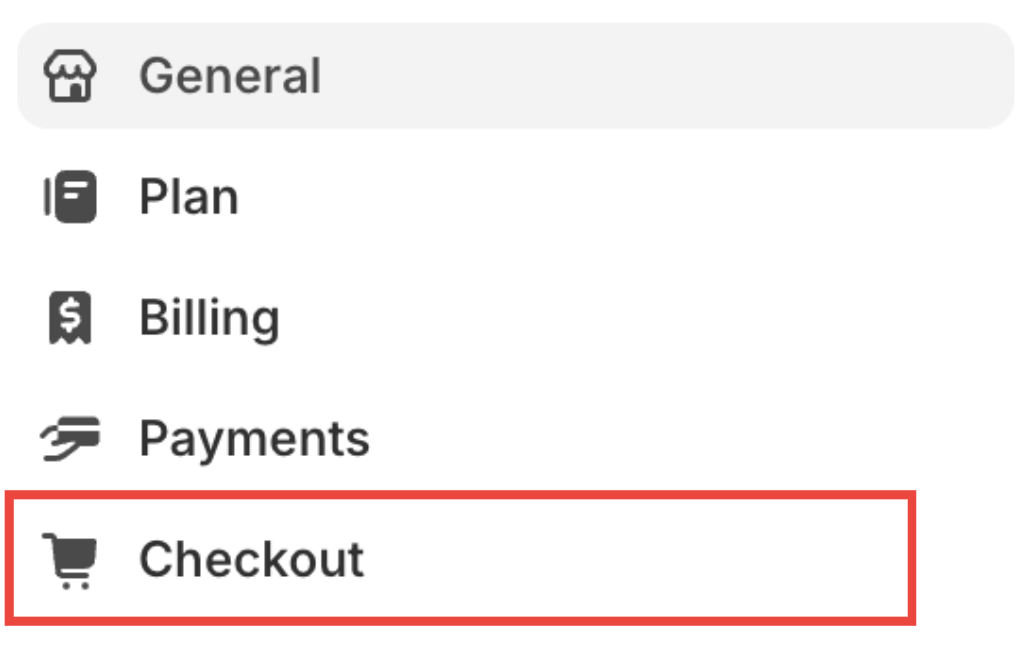
Click on Checkout
-
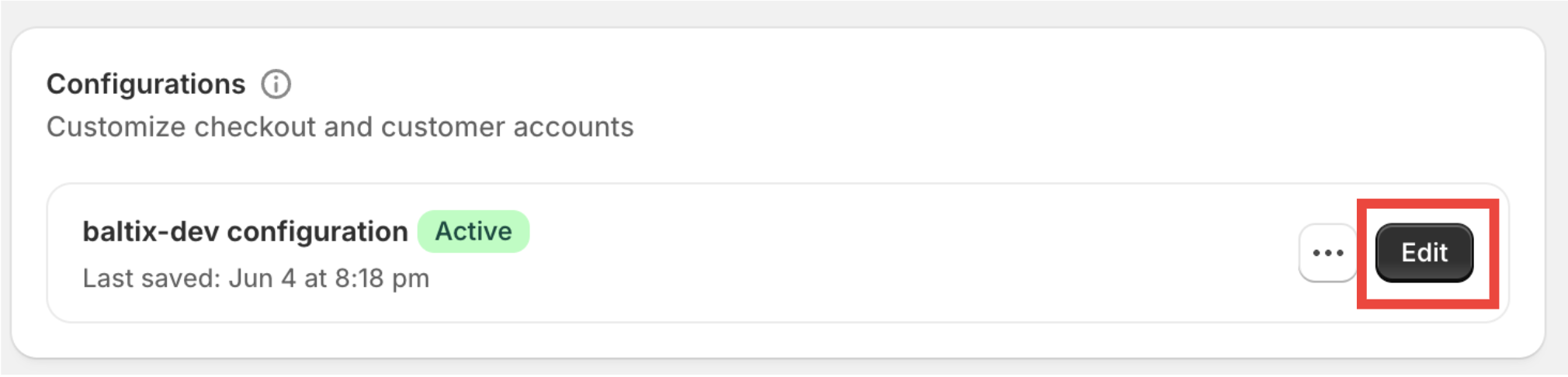
Click on Edit button
-
You should be on a page looking like this:
(1): Sidebar is the block editor
(2): Selector for page, in our case Thank you and Order status page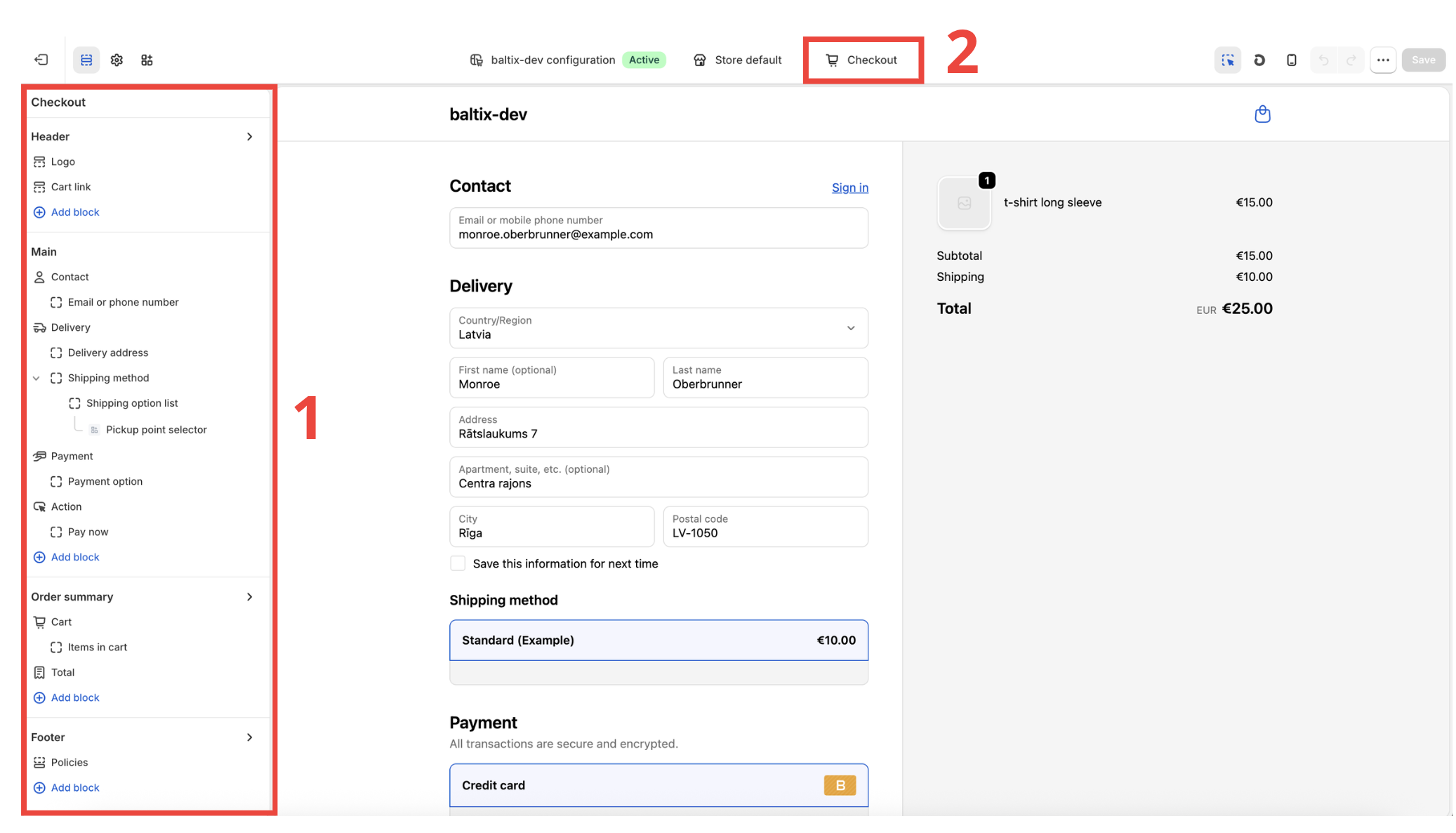
Activate on Thank you page
-
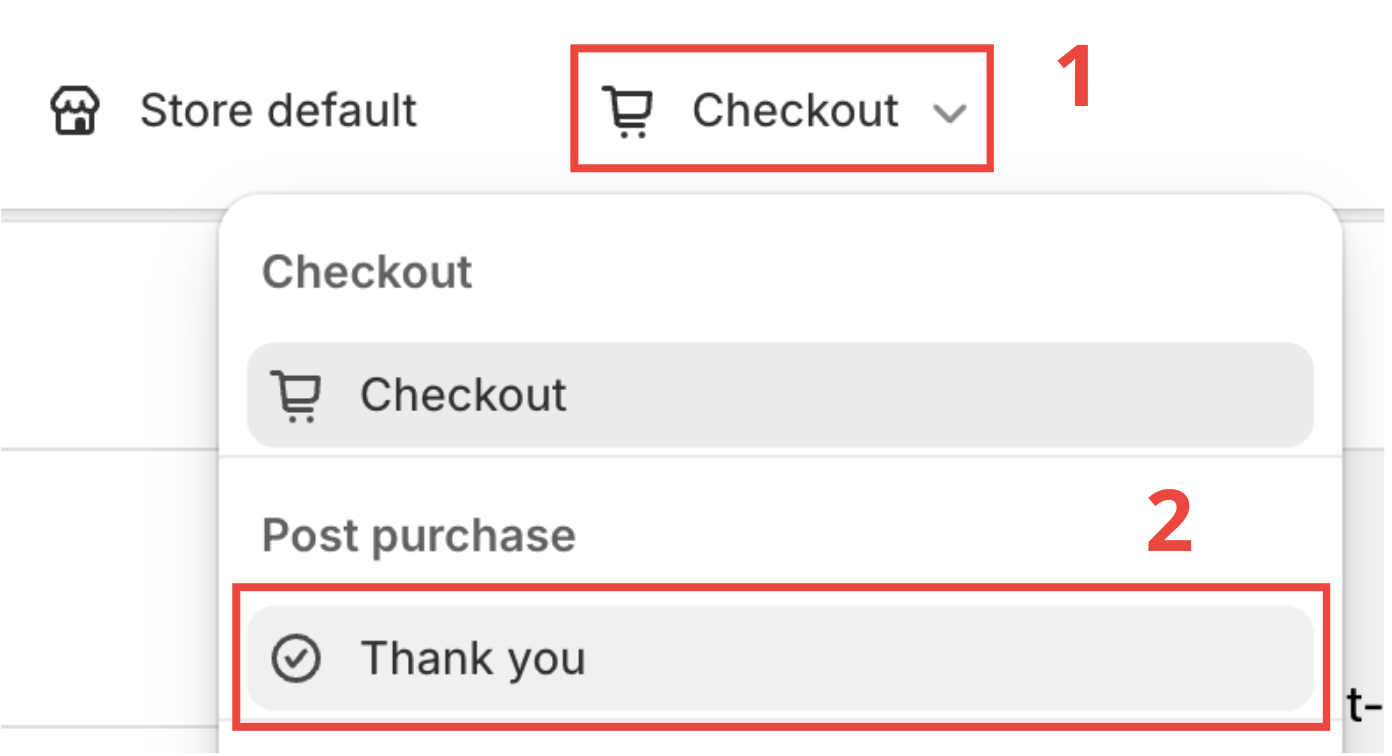
In header selector (2), select Thank you page, click on (1), then (2):
-
In sidebar (1), locate Main (1), then click on Add block, then choose Pickup point selector.
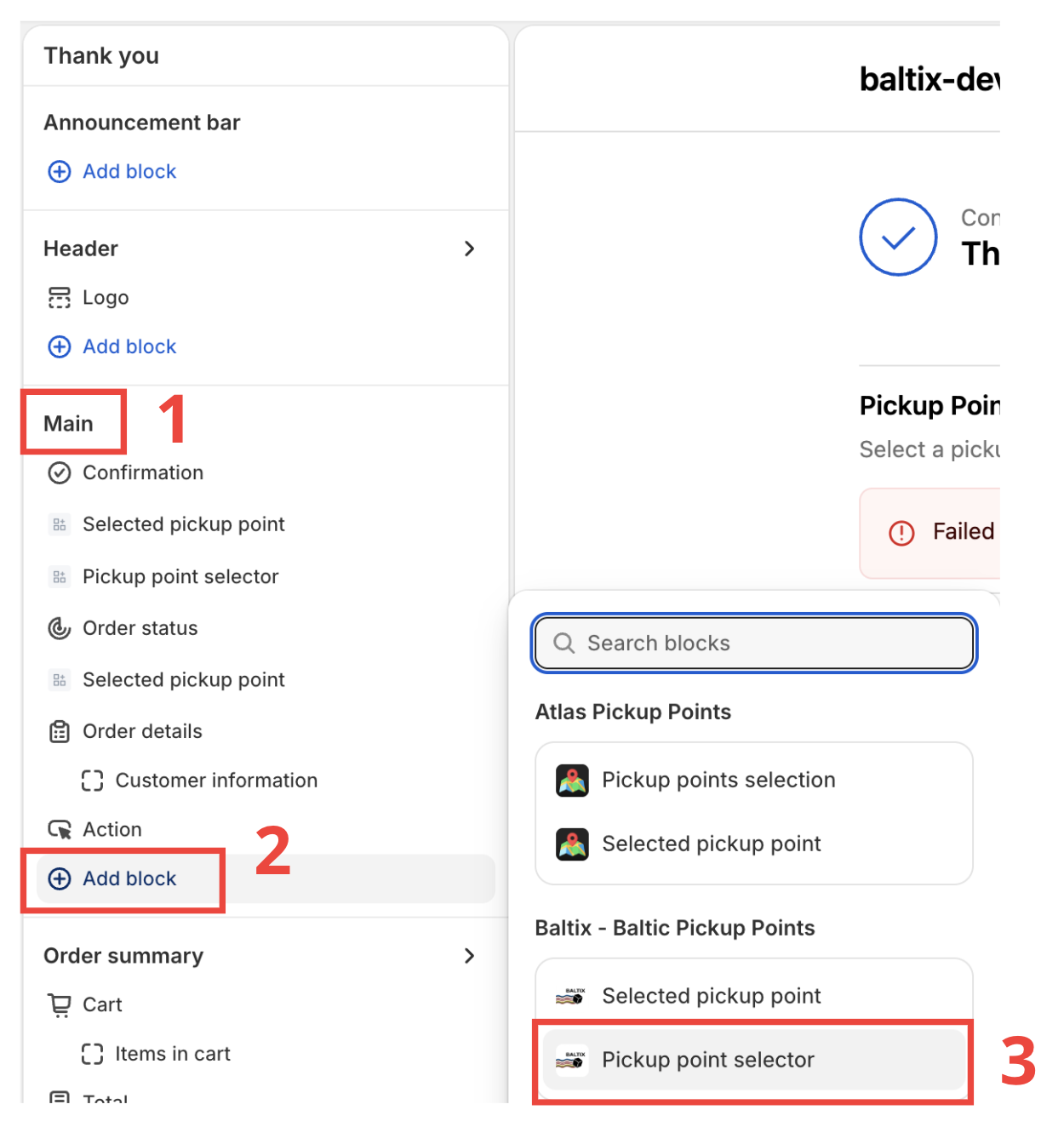
-
You can move the block wherever you want in the page, position don't matters.
Recommended placement: at the top of the page, so customers see it immediately -
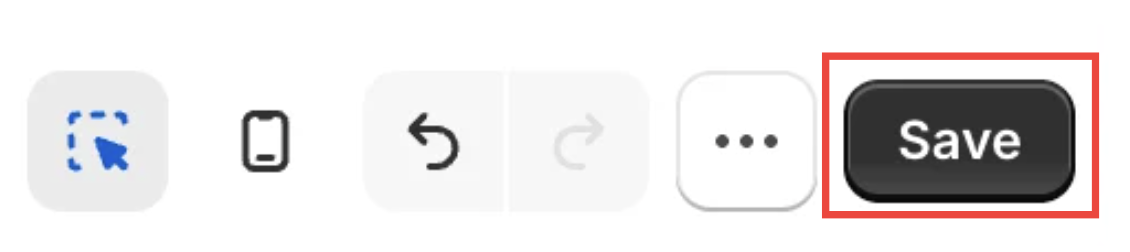
Click Save
Part B — Selected Pickup Point
This extension displays a confirmation card showing the pickup point the customer selected. It includes the address and a small map.
Thank You page
- In Shopify Admin, go to Settings > Checkout > Customize
- Switch to the Thank you page
- Click Add app block and select Selected pickup point
- Recommended placement: after the order confirmation, before customer information
- Click Save
Order Status page (Customer Account)
This lets customers see their selected pickup point when they check their order status.
- In Shopify Admin, go to Settings > Customer accounts > Customize
- Navigate to the Order Status page
- Click Add app block and select Selected pickup point
- Recommended placement: between Order status and Customer information
- Click Save
Quick Reference
| Extension | Page | How to access editor | Recommended placement |
|---|---|---|---|
| Pickup point selector | Checkout (Plus only) | Settings > Checkout > Customize > Shipping step | After shipping options |
| Pickup point selector | Thank You | Settings > Checkout > Customize > Thank You | Top of page |
| Selected pickup point | Thank You | Settings > Checkout > Customize > Thank You | After order confirmation |
| Selected pickup point | Order Status | Settings > Customer accounts > Customize > Order Status | Between order status and customer info |
Verify it works
- Go to your store and add a product to the cart
- Proceed to checkout and select a shipping method that is linked to a carrier
- Shopify Plus: The pickup point selector should appear under your shipping options
- Standard plans: Complete checkout — the pickup point selector should appear on the Thank You page
- Check the Order Status page in your customer account to verify the selected pickup point is displayed
- Make sure you have linked at least one carrier to the shipping method the customer selected (Settings > Pickup Points)
- Verify the extensions are enabled (not just added) in the checkout editor — check the visibility toggle in the sidebar
- Try a different browser or incognito mode to avoid caching issues