7️⃣ Pickup points at checkout (Shopify Grow plan)
If your Shopify store is on the Grow plan or higher (but not Shopify Plus), you can display pickup points directly at checkout as shipping options. Customers pick a location during checkout, sorted by distance to their address — no post-checkout step required.
This depends on your Shopify plan (the plan you pay Shopify for) — not your Baltix plan.
- Shopify Basic — Not supported. Use the Thank You page selector instead (see step 6).
- Shopify Grow (annual billing) — Supported. Carrier-calculated shipping is included for free.
- Shopify Grow (monthly billing) — Supported, but carrier-calculated shipping is a paid add-on ($20/month). To enable it, contact Shopify customer support and ask them to add carrier-calculated shipping to your account.
- Shopify Advanced — Supported. Carrier-calculated shipping is included.
- Shopify Plus — You already have access to the richer native checkout extension. No need to use this setup.
- Baltix Growth plan or higher subscription
- Shopify Grow plan or higher with carrier-calculated shipping enabled (free on Grow annual; $20/month add-on on Grow monthly — contact Shopify support to enable)
- At least one carrier connected in Settings → Carriers
How it works
- The customer enters their delivery address at checkout
- Shopify asks Baltix for available shipping rates
- Baltix returns the configured number of pickup points, sorted by distance according to your limit and search-radius settings
- The customer selects a pickup point as their shipping method and completes the order
Each pickup point shows up as its own shipping option in the Shipping method list, prefixed with its distance from the customer's address:
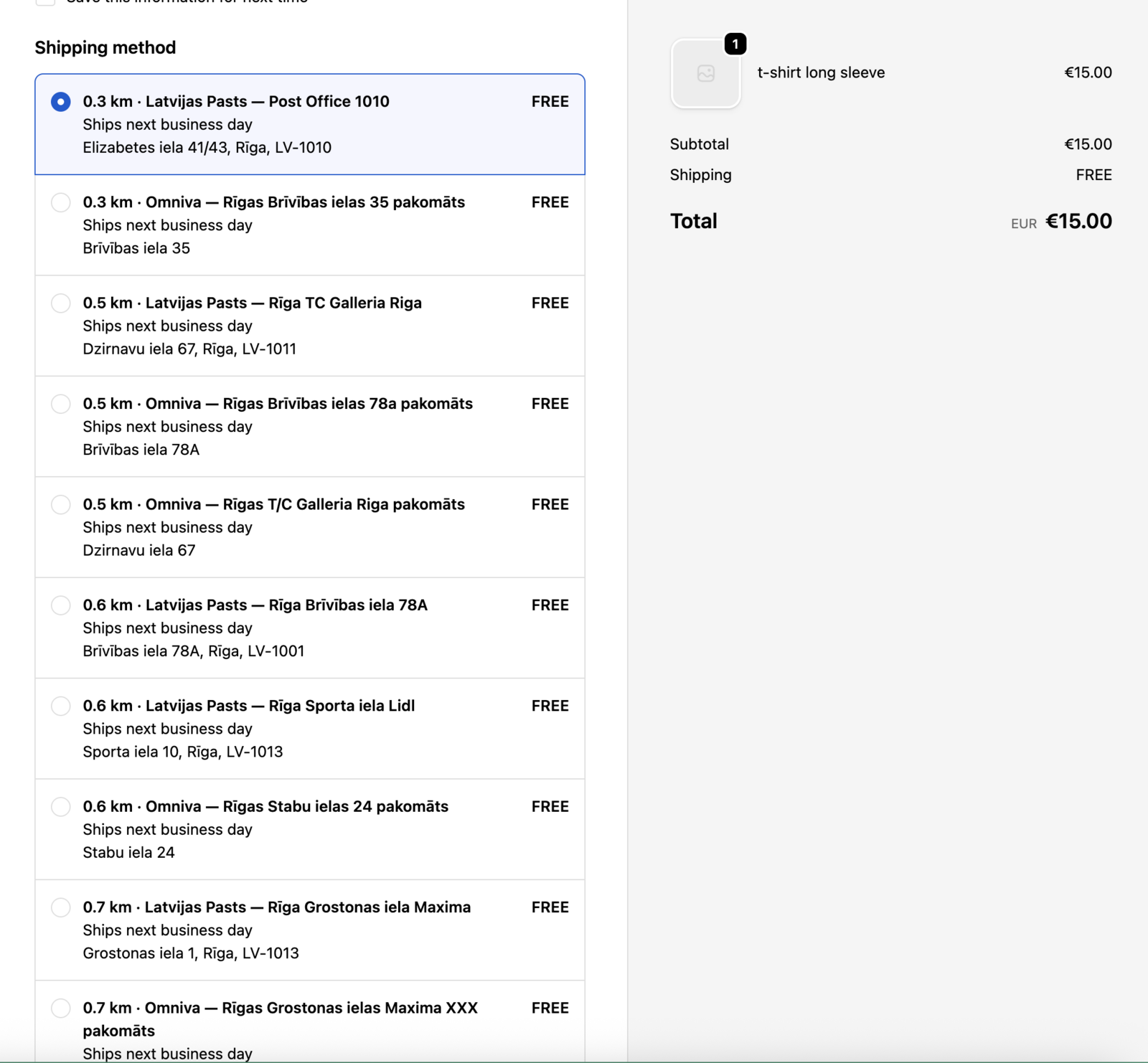
The price of each rate is the price you configured per carrier and country — not a flat rate.
Configure the pickup-point search
These settings are available in Settings → Pickup Points.
Number of pickup points
In the Pricing tab, use Pickup points shown at checkout to choose how many points are displayed. You can set a value from 1 to 100 and choose one of two modes:
- Global limit — shows the closest points overall across all enabled carriers, up to the configured number.
- Limit per carrier — shows up to the configured number of closest points for each enabled carrier.
Search radius
In the General tab, Pickup point search radius controls how far Baltix searches from the customer's delivery address. Growth plans and higher can configure a radius from 1 to 50 km.
When at least one point is found inside the radius, only points inside that radius are considered, then the display limit is applied. If no point is found inside the radius, you can choose to show a fallback list of the closest points outside the radius, with a separate limit from 1 to 100. Disable this fallback if no out-of-radius points should be shown.
The default configuration is a 5 km radius with fallback enabled and up to 20 fallback points.
Part A — Register the shipping service
Baltix needs to be registered as a calculated shipping carrier inside Shopify before pickup points can appear at checkout.
- Open your Baltix dashboard
- In the Getting Started guide, find the step Register shipping service in Shopify
- Click Register
You should see a confirmation that the carrier service was registered. If it fails, double-check that your Shopify plan supports carrier-calculated shipping — free on Shopify Grow annual (or higher), or the $20/month add-on on Shopify Grow monthly (contact Shopify customer support to enable it).
Registering the service is not enough. You must then go to Shopify Settings → Shipping and delivery and enable all services in the list for the Baltix carrier. Until you do, Shopify will not call Baltix and no pickup points will appear at checkout. See Part C below.
If you change carriers or pricing later, click Re-register on the same step. This forces Shopify to refresh the list of available services.
Part B — Set the price per carrier and country
Each carrier needs a price configured for each country you ship to. Without a price, the rate appears as free at checkout.
- From the dashboard, click Configure pricing on the Set checkout pricing step (or go directly to Settings → Checkout pricing)
- For each carrier, set the price for each enabled country
- Click Save
The currency is always EUR by default. Each row corresponds to one carrier in one country.
Part C — Enable Baltix in your Shopify shipping zones
This is the most important step. Even after registering the service, Shopify will not call Baltix until you enable it in at least one shipping zone.
- In Shopify Admin, go to Settings → Shipping and delivery
- Find the shipping profile that covers the country you want to enable (for example, the zone containing Latvia or Lithuania)
- Click Add rate (or edit an existing rate)
- Choose Use carrier or app to calculate rates
- In the carrier dropdown, select Baltix Pickup Points
- A modal opens listing all available shipping services — check all of them to enable the carrier
The modal lists every pickup point Shopify discovered during the last service refresh. Select all of them, then click Done. If some services are left unchecked, the corresponding pickup points may not appear at checkout.
The number of services you check here also sets the maximum: in Baltix you can then limit how many pickup points are shown at checkout — anywhere from 1 up to the number of services you checked in this list.
- Click Save on the rate, then Save on the shipping zone
Verify it works
- Go to your storefront and add a product to the cart
- Proceed to checkout
- Enter a delivery address in one of your enabled countries
- Under Shipping method, you should see pickup points listed by carrier, sorted by distance
Shopify caches shipping rates per address. If you don't see your pickup points after a change, change the postal code or open the checkout in an incognito window to force a new rate calculation.
Troubleshooting
"Baltix Pickup Points" doesn't appear in the carrier list
- Your Shopify plan doesn't support carrier-calculated shipping. Upgrade to Shopify Grow annual (free), or on Shopify Grow monthly contact Shopify customer support to add the $20/month carrier-calculated shipping add-on.
- The carrier service wasn't registered. Open the Baltix Getting Started guide and click Register.
Only one carrier shows at checkout
- Other carriers may not have pickup points within range of the customer's address.
- Verify the carrier is connected and enabled in Settings → Carriers.
Pickup points show as free at checkout
- You haven't set a price for that carrier and country yet. Open Settings → Checkout pricing and set a price.
Prices changed but still show the old amount at checkout
- Shopify caches rates. Change the postal code at checkout to force a refresh, or test in an incognito window.
Differences vs Shopify Plus checkout extension
| Feature | Shopify Plus (extension) | Shopify Grow (this setup) |
|---|---|---|
| Where customer selects | Native Shopify checkout slot | Pickup points listed as shipping rates |
| Map view | Yes, built into the extension | No — list view only |
| Custom UI | Fully customizable | Limited to Shopify's shipping options |
| Pricing source | Configured in Shopify shipping settings | Configured in Baltix → Checkout pricing |
On Shopify Plus, the same pickup points appear inside a richer embedded widget with a search box and a Map / List toggle, instead of being listed as separate shipping rates:
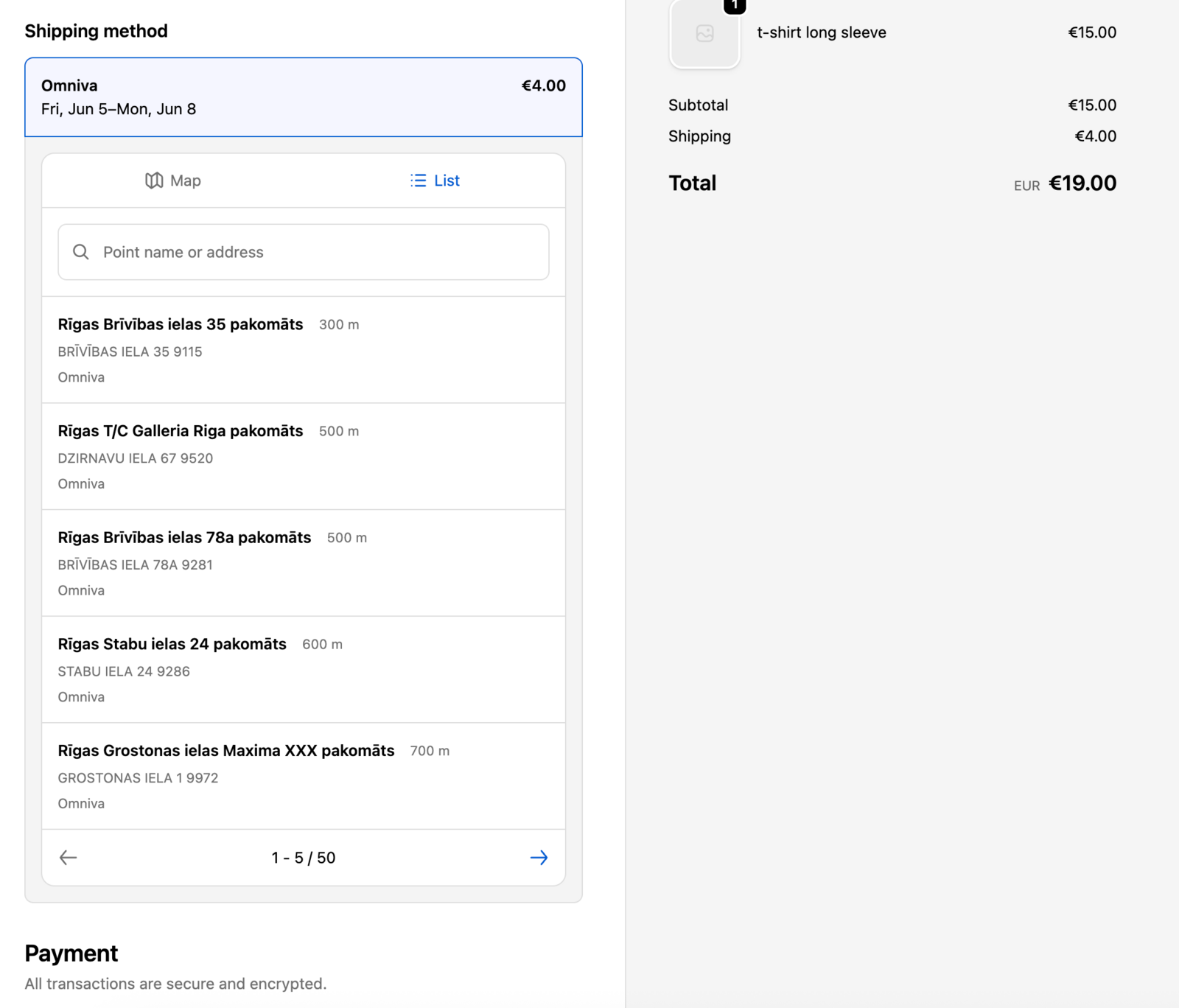
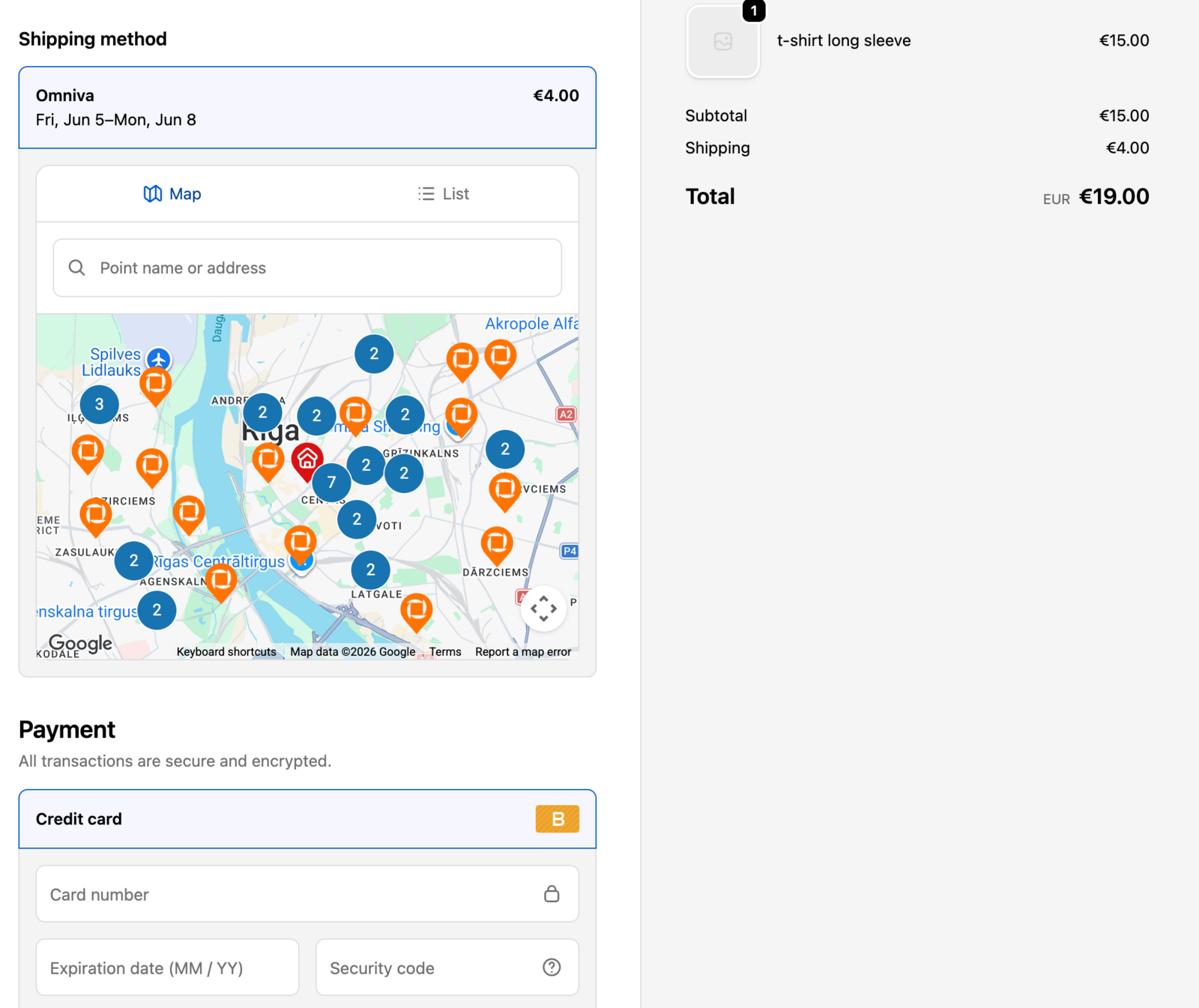
If you upgrade to Shopify Plus later, Baltix will automatically switch to the checkout extension flow.