Swotzy Integration
If you use Swotzy to manage your parcel shipments, you can connect it to Baltix. When a customer selects a pickup point at checkout, Baltix will automatically update the matching order in Swotzy with the correct carrier, service, and parcel shop.
The External Provider tab is only visible when your app is running in Pickup Only mode. If you don't see the tab, go to Settings > General and switch the app mode.
Prerequisites
1. A Swotzy account with API access
Create an account on Swotzy.
2. Get Swotzy API key
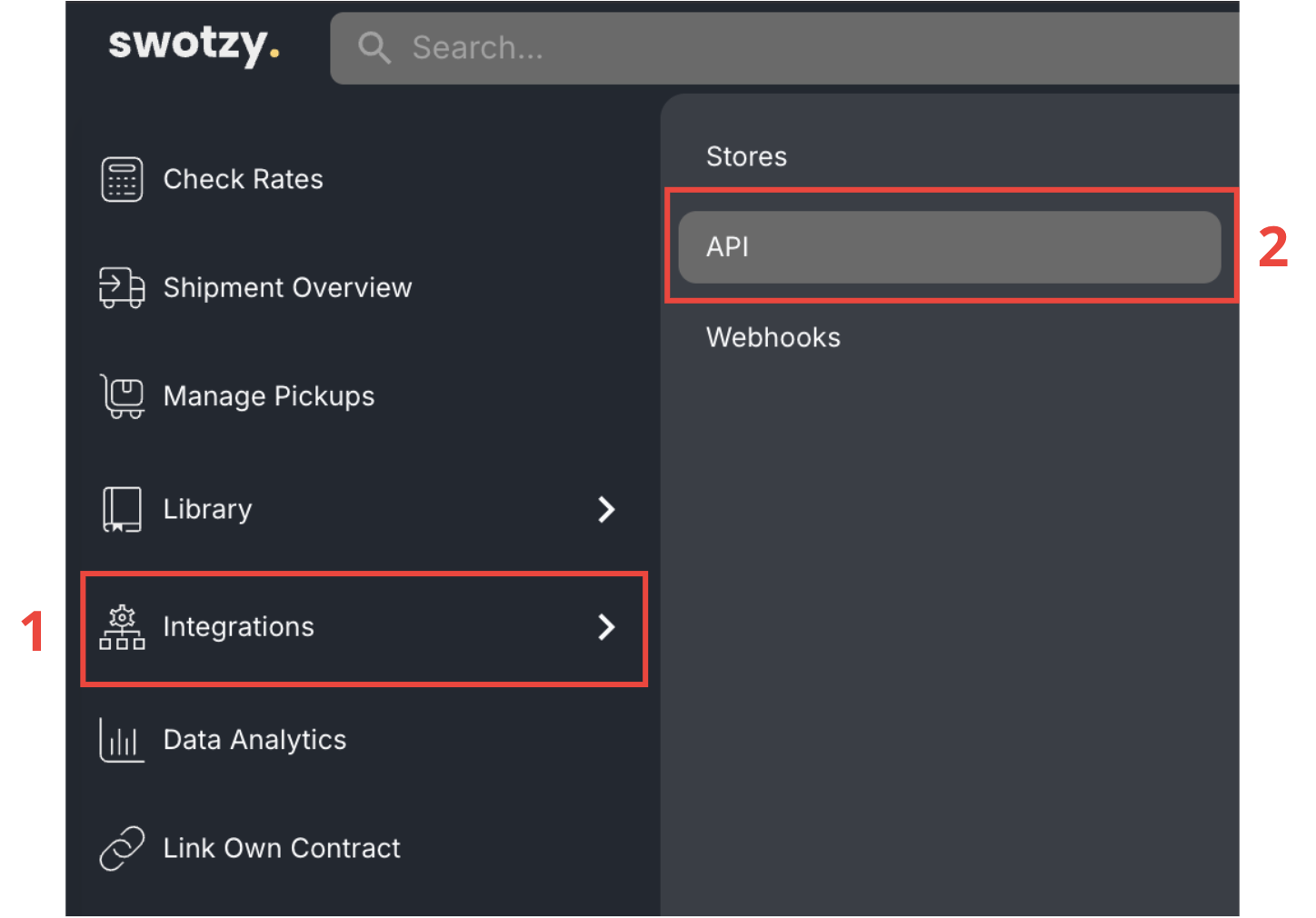
- Go to left lateral menu.
- Then click on Integrations tab (1).
- Then click on API menun item (2).
- Create a new API key.
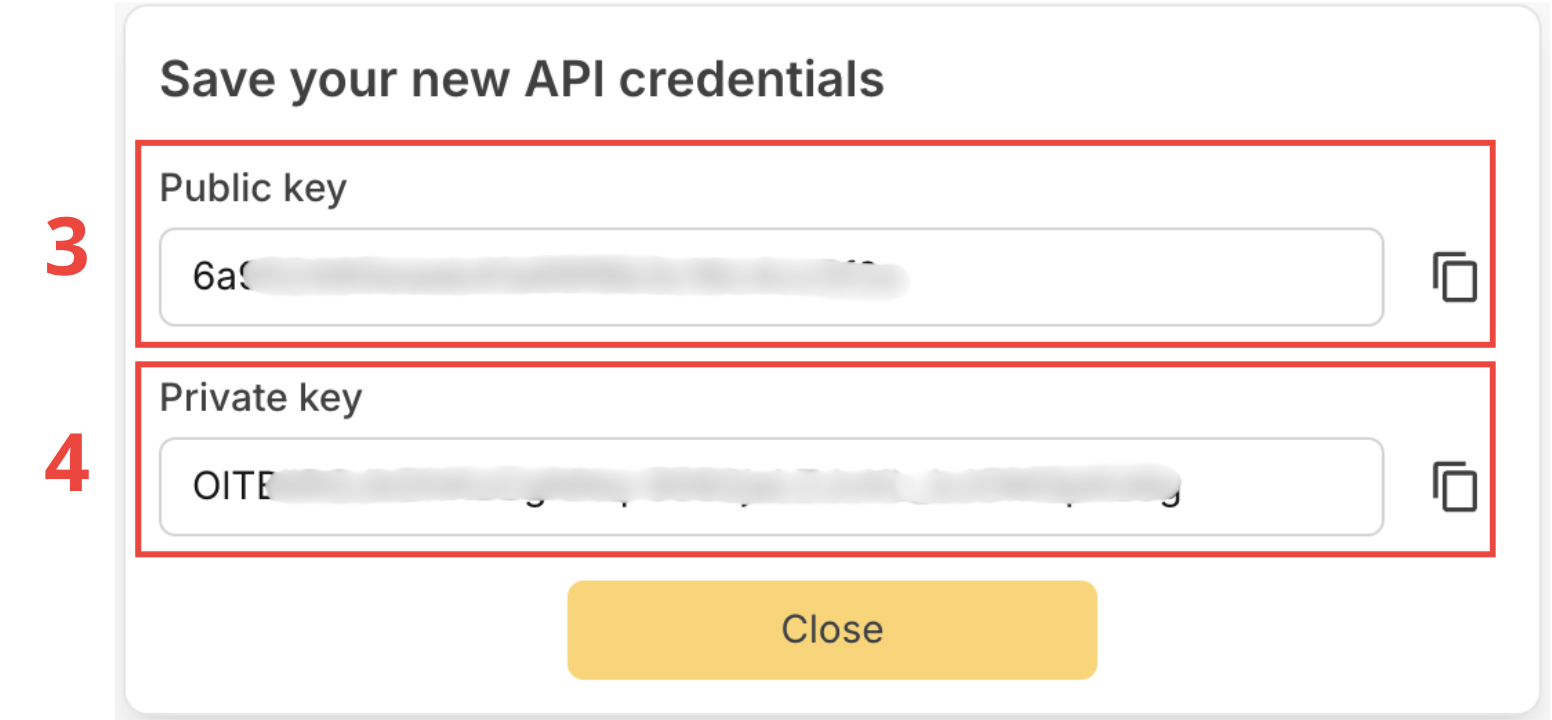
- Save (3) Public key and (4) Private key.
- Then go Connect Swotzy
3. Set product weight and dimensions in Shopify
Each product variant in your Shopify store must have its weight and package dimensions (length, width, height) configured. Baltix sends this data to Swotzy when updating the order — if it is missing, Swotzy may reject the shipment or use incorrect default values.
To set them up:
- Go to your Shopify admin > Products
- Open a product and scroll to the Shipping section
- Fill in the Weight, Length, Width, and Height fields
- Repeat for every product variant
4. Enable "Display store order ID on label" setting
In your Swotzy dashboard, you must enable "Display store order ID on label" in your integration settings. Baltix uses the Shopify order number to match orders in Swotzy — without this setting enabled, the matching will fail and pickup point data won't be pushed.
How to enable setting
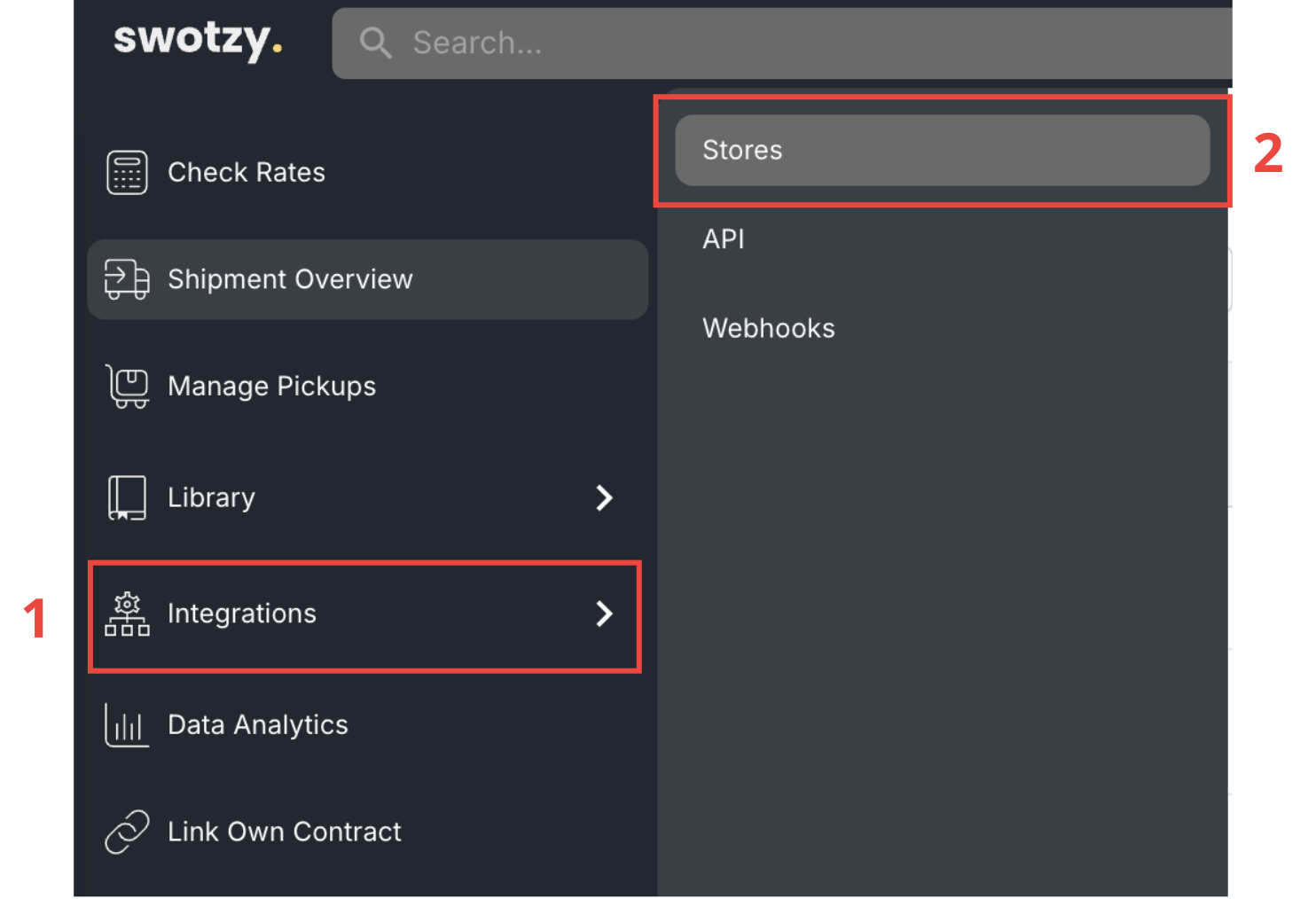
- Go to left lateral menu
- Then click on Integrations tab (1)
- Then click on Stores menun item (2)
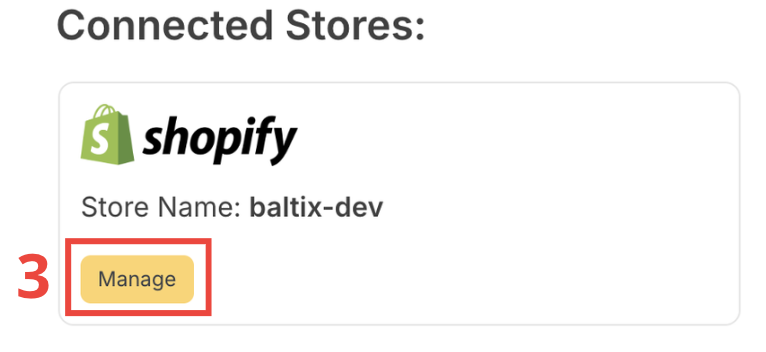
- Click on Manage button on your Shopify website (3)
- Then enable Display store order ID on label

- Don't forget to save by clicking on Save button at the bottom of page.

Connect Swotzy
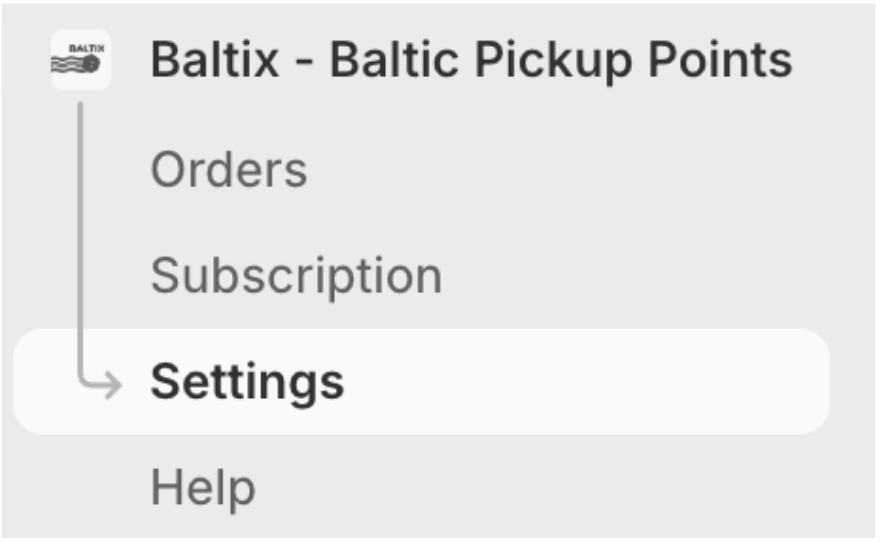
- Then go to Baltix integrations Settings tab.
- Then External Provider (5).
- Enter Public key from (3) in text input (6).
- Enter Private key from (4) in text input (7).
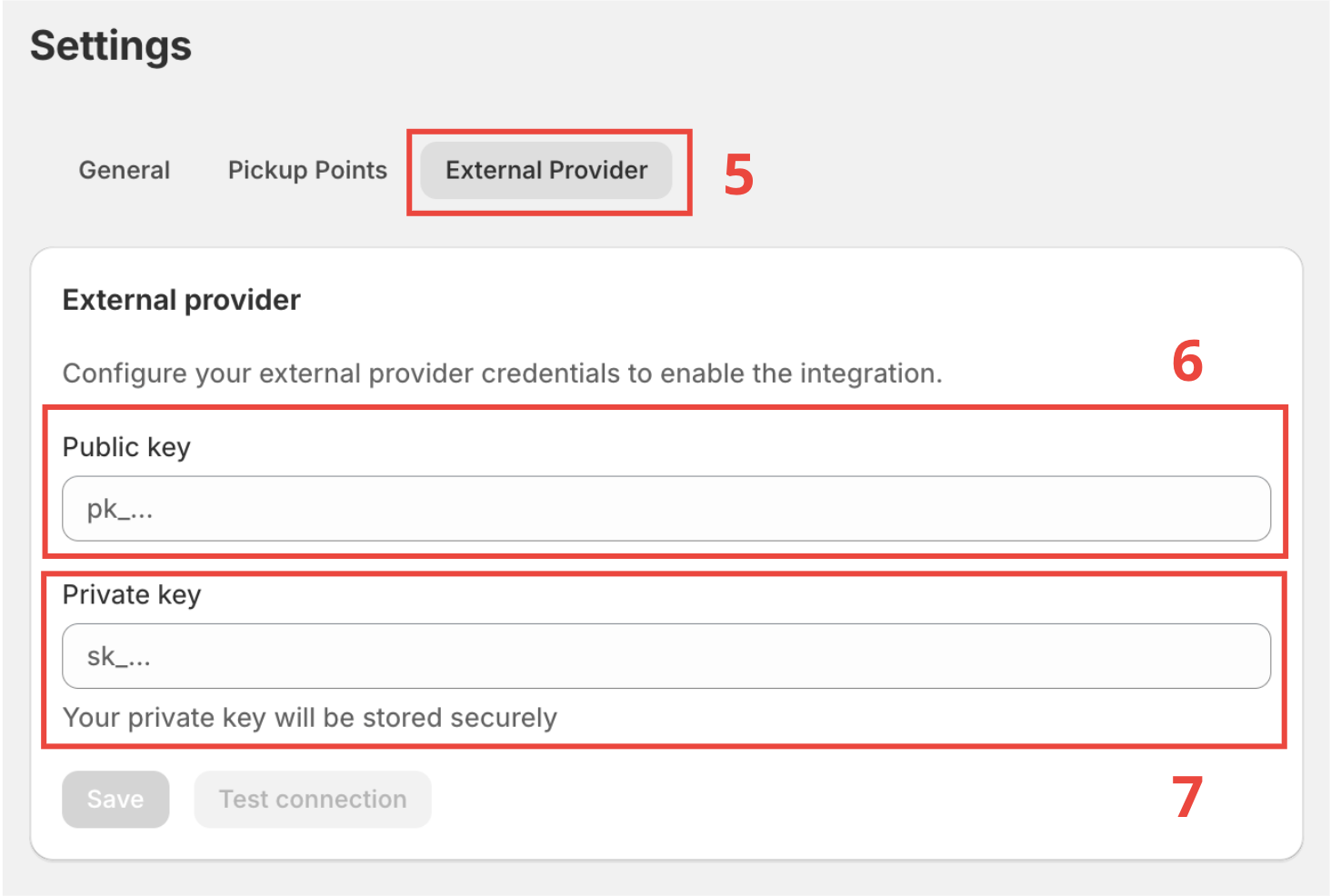
- Click Test connection to verify the credentials are valid
- Click Save
Once saved, a green Connected badge appears next to the title.
Due to a Shopify platform limitation, it is currently not possible to dynamically adjust the shipping price based on the carrier selected by the customer. The shipping rate displayed at checkout is the one you configured in your Shopify shipping settings, regardless of which carrier pickup point the customer chooses.
Check Shipping Method setup to configure your shipping rates
To complete your setup, follow these guides:
- Google Maps setup — required for the pickup point map at checkout
- Shipping Method setup — configure your shipping rates
- Extensions setup — activate the checkout extensions
How it works
When a customer places an order and selects a pickup point:
- Baltix receives a Shopify webhook with the order data
- A background job searches for the matching order in Swotzy (by order number or customer email)
- The job updates the Swotzy order with:
- The carrier (Omniva, DPD, Latvijas Pasts, etc.)
- The service type (
PARCELSHOP) - The selected parcel shop ID
- The customer's phone number
- Package dimensions (from product variant data, if available)
If the Swotzy order is not found immediately (sync delay), the job retries automatically up to 5 times with exponential backoff.
Order sync status
Each order in Baltix tracks the Swotzy push status:
- PENDING — The job is queued or in progress
- SUCCESS — The pickup point was pushed to Swotzy successfully
- FAILED — All retry attempts failed (check the error message on the order detail page)
You can manually retry a failed push from the order detail page.
Disconnect Swotzy
- Go to Settings > External Provider
- Click Delete
This removes the stored credentials. Orders already pushed to Swotzy are not affected.
Troubleshooting
| Problem | Solution |
|---|---|
| "Connection failed" on test | Double-check the public and private keys. Make sure there are no extra spaces. |
| Order stuck in PENDING | Contact support |
| Order shows FAILED | Open the order detail to see the error. Common cause: the order was not yet created in Swotzy when Baltix update the order. Don't worry Baltix is retying until the order is edited |
| Swotzy order already processed | If the order left "draft" status in Swotzy before Baltix could update it, Baltix marks it as SUCCESS (no action needed). |