7️⃣ Atsiėmimo punktai atsiskaitymo metu (Shopify Grow planas)
Jei jūsų Shopify parduotuvė naudoja Grow planą ar aukštesnį (bet ne Shopify Plus), galite rodyti atsiėmimo punktus tiesiogiai atsiskaitymo metu kaip pristatymo parinktis. Klientai pasirenka vietą atsiskaitymo metu, surūšiuotą pagal atstumą iki jų adreso — be papildomo veiksmo po atsiskaitymo.
Tai priklauso nuo jūsų Shopify plano (plano, už kurį mokate Shopify) — o ne nuo jūsų Baltix plano.
- Shopify Basic — Nepalaikoma. Vietoj to naudokite padėkos puslapio parinkiklį (žr. 6 žingsnį).
- Shopify Grow (metinis atsiskaitymas) — Palaikoma. Vežėjo apskaičiuotas pristatymas įtrauktas nemokamai.
- Shopify Grow (mėnesinis atsiskaitymas) — Palaikoma, tačiau vežėjo apskaičiuotas pristatymas yra mokamas priedas ($20/mėn.). Norėdami jį įjungti, susisiekite su Shopify klientų aptarnavimu ir paprašykite prie jūsų paskyros pridėti vežėjo apskaičiuotą pristatymą.
- Shopify Advanced — Palaikoma. Vežėjo apskaičiuotas pristatymas yra įtrauktas.
- Shopify Plus — Jūs jau turite prieigą prie turtingesnio vietinio atsiskaitymo plėtinio. Šios sąrankos naudoti nereikia.
- Baltix Growth plano arba aukštesnio plano prenumerata
- Shopify Grow planas ar aukštesnis su įjungtu vežėjo apskaičiuotu pristatymu (nemokamai Grow metiniame plane; $20/mėn. priedas Grow mėnesiniame plane — kreipkitės į Shopify palaikymą, kad įjungtumėte)
- Bent vienas vežėjas prijungtas skiltyje Settings → Carriers
Kaip tai veikia
- Klientas atsiskaitymo metu įveda savo pristatymo adresą
- Shopify paprašo Baltix galimų pristatymo tarifų
- Baltix grąžina sukonfigūruotą atsiėmimo punktų skaičių, surūšiuotą pagal atstumą ir paieškos nustatymus
- Klientas pasirenka atsiėmimo punktą kaip pristatymo būdą ir užbaigia užsakymą
Kiekvienas atsiėmimo punktas rodomas kaip atskira pristatymo parinktis sąraše Shipping method, su atstumu nuo kliento adreso:
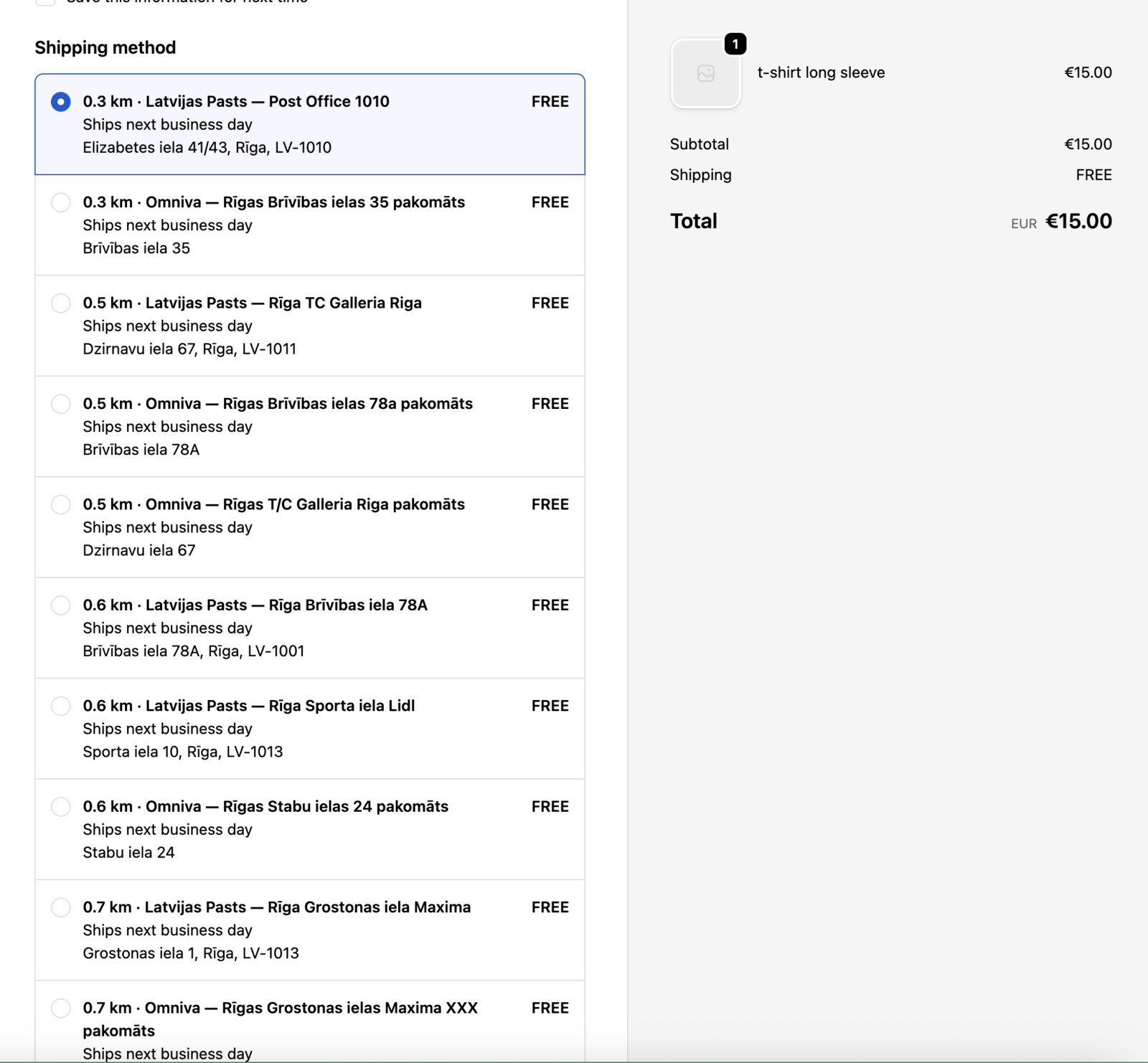
Kiekvieno tarifo kaina yra kaina, kurią sukonfigūravote kiekvienam vežėjui ir šaliai — o ne vienodas tarifas.
A dalis — Užregistruokite pristatymo paslaugą
Baltix turi būti užregistruotas kaip apskaičiuoto pristatymo vežėjas Shopify, kad atsiėmimo punktai galėtų atsirasti atsiskaitymo metu.
- Atidarykite savo Baltix skydelį
- Getting Started vadove raskite žingsnį Register shipping service in Shopify
- Spustelėkite Register
Turėtumėte pamatyti patvirtinimą, kad vežėjo paslauga buvo užregistruota. Jei nepavyksta, dar kartą patikrinkite, ar jūsų Shopify planas palaiko vežėjo apskaičiuotą pristatymą — nemokamai Shopify Grow metiniame plane (ar aukštesniame) arba $20/mėn. priedas Shopify Grow mėnesiniame plane (kreipkitės į Shopify klientų aptarnavimą, kad įjungtumėte).
Vien užregistruoti paslaugos neužtenka. Tada turite eiti į Shopify Settings → Shipping and delivery ir įjungti visas sąrašo paslaugas Baltix vežėjui. Kol to nepadarysite, Shopify nekvies Baltix ir atsiskaitymo metu neatsiras nė vienas atsiėmimo punktas. Žr. C dalį žemiau.
Jei vėliau keičiate vežėjus ar kainodarą, spustelėkite Re-register tame pačiame žingsnyje. Tai priverčia Shopify atnaujinti galimų paslaugų sąrašą.
B dalis — Nustatykite kainą kiekvienam vežėjui ir šaliai
Kiekvienam vežėjui reikia sukonfigūruoti kainą kiekvienai šaliai, į kurią siunčiate. Be kainos tarifas atsiskaitymo metu rodomas kaip nemokamas.
- Skydelyje spustelėkite Configure pricing žingsnyje Set checkout pricing (arba eikite tiesiai į Settings → Checkout pricing)
- Kiekvienam vežėjui nustatykite kainą kiekvienai įjungtai šaliai
- Spustelėkite Save
Valiuta pagal numatytuosius nustatymus visada yra EUR. Kiekviena eilutė atitinka vieną vežėją vienoje šalyje.
C dalis — Įjunkite Baltix savo Shopify pristatymo zonose
Tai svarbiausias žingsnis. Net užregistravus paslaugą, Shopify nekvies Baltix, kol neįjungsite jos bent vienoje pristatymo zonoje.
- Shopify Admin eikite į Settings → Shipping and delivery
- Raskite pristatymo profilį, apimantį šalį, kurią norite įjungti (pavyzdžiui, zoną su Latvija ar Lietuva)
- Spustelėkite Add rate (arba redaguokite esamą tarifą)
- Pasirinkite Use carrier or app to calculate rates
- Vežėjų išskleidžiamajame sąraše pasirinkite Baltix Pickup Points
- Atsidaro langas su visomis galimomis pristatymo paslaugomis — pažymėkite jas visas, kad įjungtumėte vežėją
Lange išvardytas kiekvienas atsiėmimo punktas, kurį Shopify aptiko paskutinio paslaugų atnaujinimo metu. Pažymėkite juos visus ir spustelėkite Done. Jei kai kurios paslaugos liks nepažymėtos, atitinkami atsiėmimo punktai atsiskaitymo metu gali neatsirasti.
Čia pažymėtų paslaugų skaičius taip pat nustato maksimumą: tada Baltix galite apriboti, kiek atsiėmimo punktų rodoma atsiskaitymo metu — nuo 1 iki šiame sąraše pažymėtų paslaugų skaičiaus.
- Spustelėkite Save ant tarifo, tada Save ant pristatymo zonos
Patikrinkite, ar veikia
- Eikite į savo parduotuvę ir įdėkite prekę į krepšelį
- Pereikite prie atsiskaitymo
- Įveskite pristatymo adresą vienoje iš įjungtų šalių
- Skiltyje Shipping method turėtumėte matyti atsiėmimo punktus pagal vežėją, surūšiuotus pagal atstumą
Shopify talpina pristatymo tarifus pagal adresą. Jei po pakeitimo nematote savo atsiėmimo punktų, pakeiskite pašto kodą arba atidarykite atsiskaitymą inkognito lange, kad priverstumėte iš naujo apskaičiuoti tarifus.
Trikčių šalinimas
"Baltix Pickup Points" neatsiranda vežėjų sąraše
- Jūsų Shopify planas nepalaiko vežėjo apskaičiuoto pristatymo. Atnaujinkite į Shopify Grow metinį planą (nemokamai) arba Shopify Grow mėnesiniame plane kreipkitės į Shopify klientų aptarnavimą, kad pridėtumėte $20/mėn. vežėjo apskaičiuoto pristatymo priedą.
- Vežėjo paslauga nebuvo užregistruota. Atidarykite Baltix Getting Started vadovą ir spustelėkite Register.
Atsiskaitymo metu rodomas tik vienas vežėjas
- Kiti vežėjai gali neturėti atsiėmimo punktų netoli kliento adreso.
- Patikrinkite, ar vežėjas yra prijungtas ir įjungtas skiltyje Settings → Carriers.
Atsiėmimo punktai atsiskaitymo metu rodomi kaip nemokami
- Dar nenustatėte kainos šiam vežėjui ir šaliai. Atidarykite Settings → Checkout pricing ir nustatykite kainą.
Kainos pasikeitė, bet atsiskaitymo metu vis dar rodoma sena suma
- Shopify talpina tarifus. Pakeiskite pašto kodą atsiskaitymo metu, kad priverstumėte atnaujinti, arba testuokite inkognito lange.
Skirtumai palyginti su Shopify Plus atsiskaitymo plėtiniu
| Funkcija | Shopify Plus (plėtinys) | Shopify Grow (ši sąranka) |
|---|---|---|
| Kur klientas pasirenka | Vietinis Shopify atsiskaitymo blokas | Atsiėmimo punktai išvardyti kaip pristatymo tarifai |
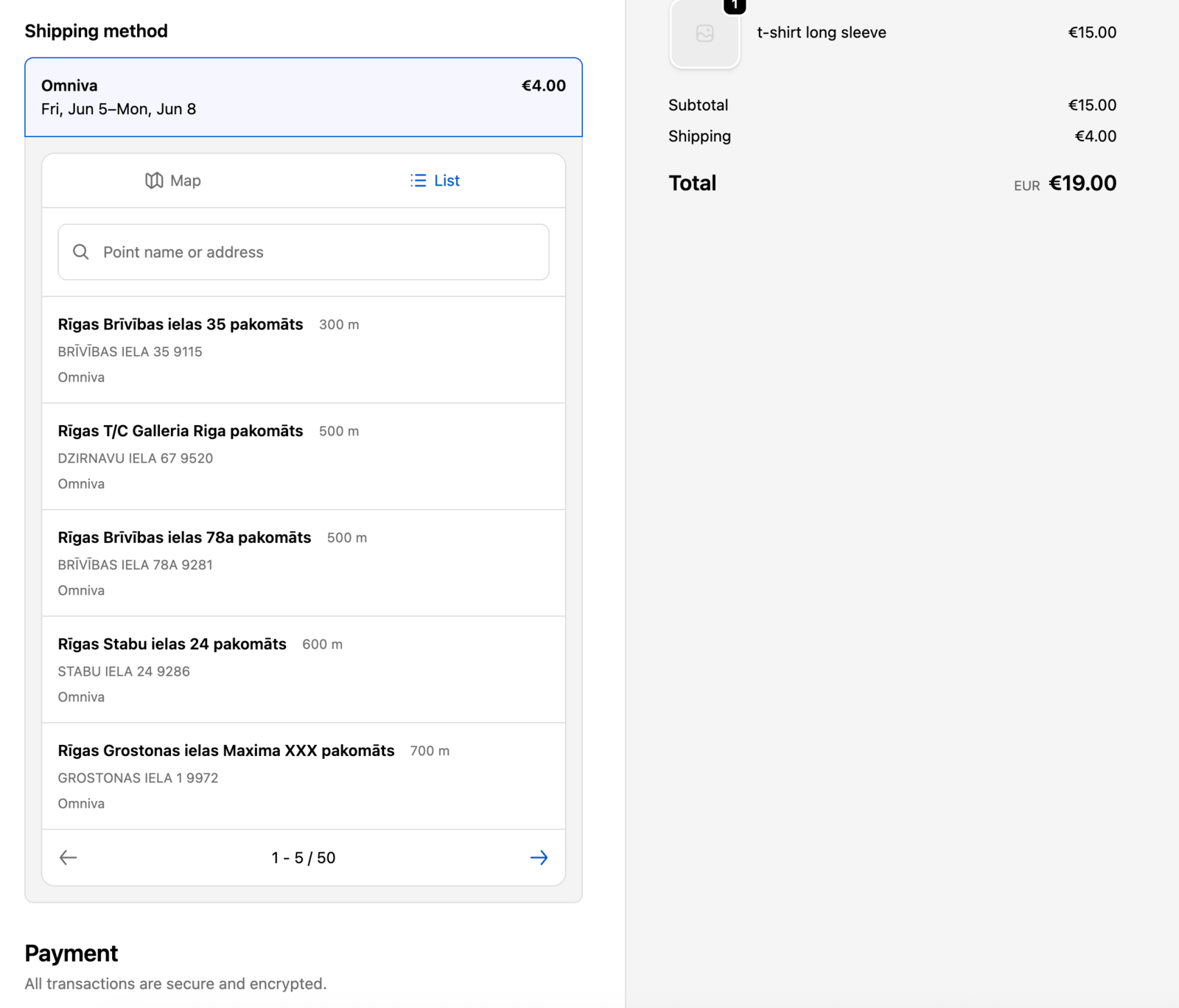
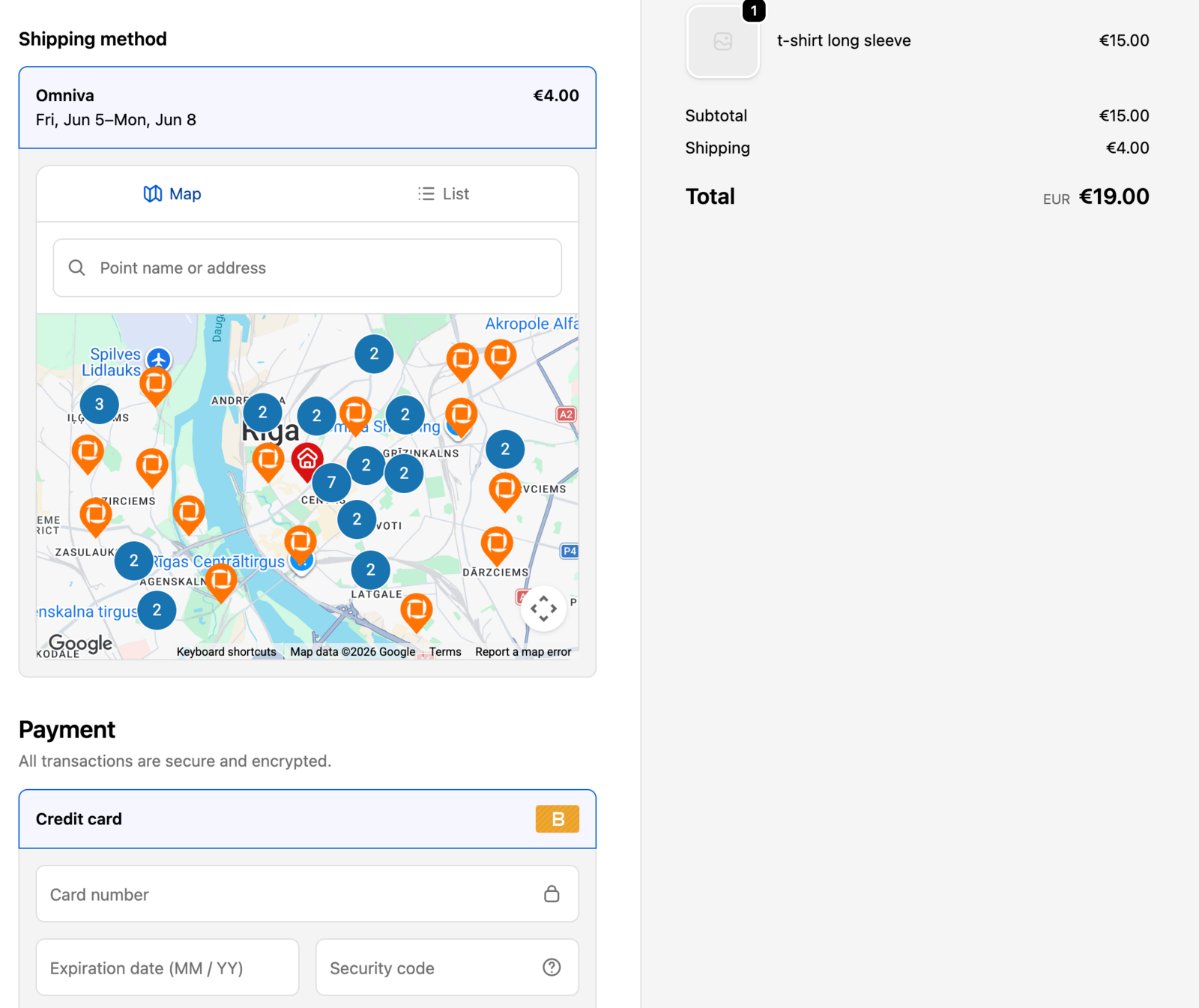
| Žemėlapio rodinys | Taip, integruotas į plėtinį | Ne — tik sąrašo rodinys |
| Pritaikytas UI | Visiškai pritaikomas | Ribotas Shopify pristatymo parinktimis |
| Kainų šaltinis | Konfigūruojama Shopify pristatymo nustatymuose | Konfigūruojama Baltix → Checkout pricing |
Shopify Plus tie patys atsiėmimo punktai rodomi turtingesniame integruotame valdiklyje su paieškos laukeliu ir Map / List perjungikliu, o ne išvardyti kaip atskiri pristatymo tarifai:
Jei vėliau atnaujinsite į Shopify Plus, Baltix automatiškai persijungs į atsiskaitymo plėtinio srautą.